


A WordPress SEO audit is not a report. It is a prioritized list of specific issues, each with a clear fix. If you finish an audit with a 50-page PDF and no action plan, you wasted your time.
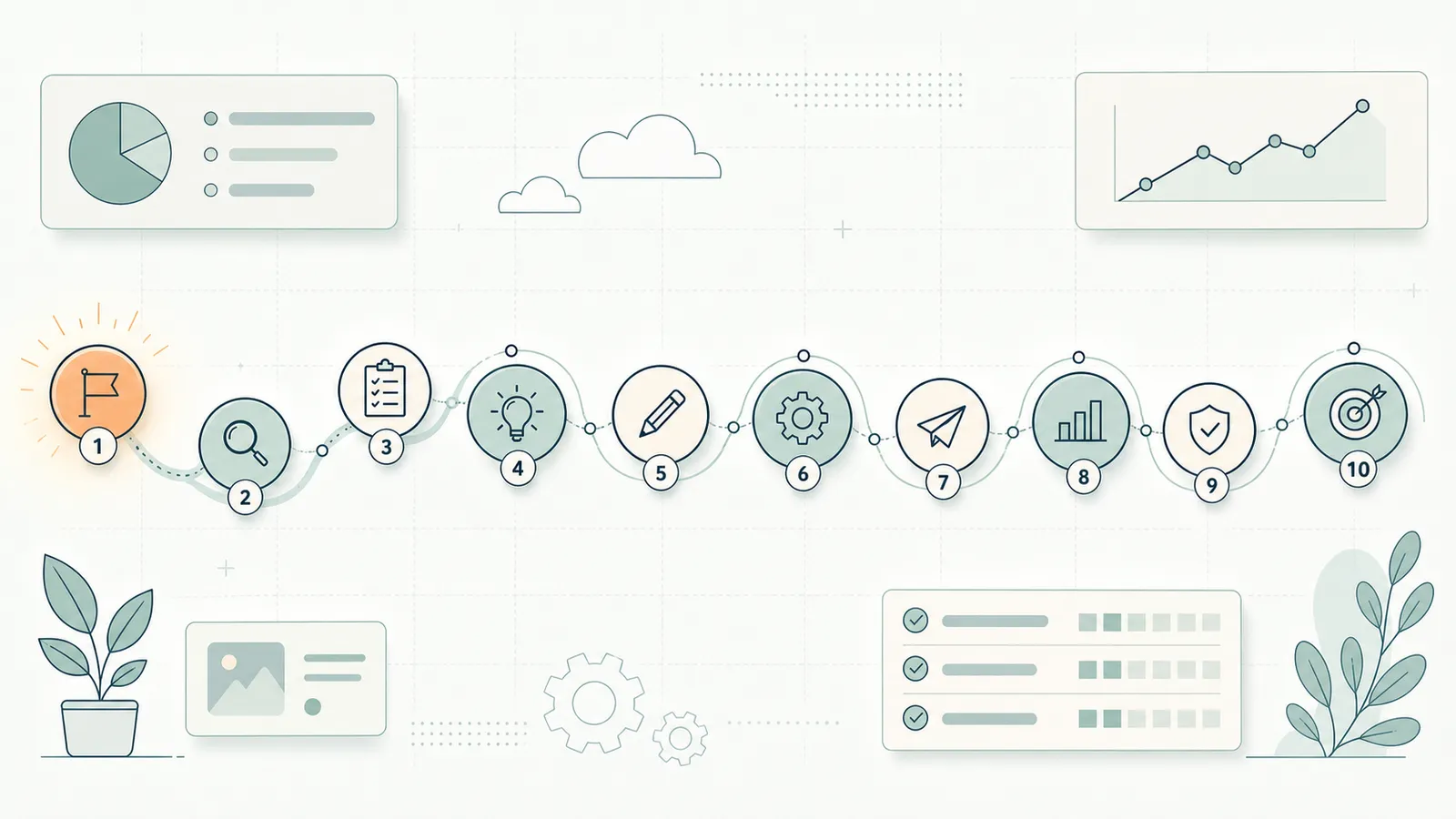
This guide gives you a 10-step audit process designed to produce exactly that: a prioritized action list. Each step has a specific tool to use, a specific thing to check, and a specific output. The whole process takes 60 to 90 minutes for a typical site under 500 pages, and produces findings you can act on the same day.
Last updated: June 6, 2026.
What tools you need
Before starting, confirm you have access to these tools — all free:
- Google Search Console (your site must be verified)
- Google PageSpeed Insights (pagespeed.web.dev)
- Screaming Frog SEO Spider free (crawls up to 500 URLs)
- Google's Rich Results Test (search.google.com/test/rich-results)
- Rank Math or Yoast SEO (your WordPress SEO plugin — needed for fixes)
Optional but useful: Ahrefs Webmaster Tools (free, 10,000 pages, gives backlink data and basic audit).
If you would rather follow a tick-box version of the on-page and technical items as you go, keep the WordPress SEO Checklist open in a second tab — it maps closely to the steps below and lets you mark each item complete.
Step 1: Crawlability audit (10 minutes)
What you are checking: Can Googlebot access your pages?
In Search Console. Go to Settings → Crawl stats. Look at the "Crawl requests breakdown." If pages are returning 4xx or 5xx errors, that is a crawl issue. If the total number of crawled pages per day has dropped significantly over the past 30 days, something has changed that is blocking crawls.
Check robots.txt. Navigate to yourdomain.com/robots.txt. Confirm:
- No
Disallow: /lines /wp-content/is not disallowed- If you have separate
Disallowlines for admin areas, that is correct — leave them
Check crawl depth. In Screaming Frog: crawl your site. After the crawl completes, go to the Crawl Analysis tab. Check "Crawl Depth" — pages deeper than 4 clicks from the homepage are often under-crawled. Move important content to shallower depth through improved internal linking.
Output: List of any blocked URLs, HTTP error URLs, or pages deeper than 4 clicks that should be shallower.
Step 2: Index coverage audit (15 minutes)
What you are checking: What is Google indexing, and is it the right stuff?
In Search Console → Index → Pages. Note three numbers: total indexed, not indexed, and excluded. Click through each tab.
Indexed — look for junk pages. Export the indexed URL list (click Export → Download CSV). Open in a spreadsheet. Filter for URLs that are not actual posts or important pages. Common junk: date archives (/2024/), tag archives (/tag/recipe/), author archives (/author/admin/), search results (?s=), and pagination beyond page 2.
Not indexed — look for important pages being blocked. Filter for your key posts and landing pages. If any appear in "Not indexed," click on the URL to see why. Common causes: noindex tag accidentally applied, canonical pointing to a different URL, or robots.txt block.
Excluded — the most useful tab. "Discovered - currently not indexed" means Google knows the page exists but has not crawled it — usually a crawl budget issue or a signal that Google considers the page low-value. "Alternate page with proper canonical tag" is usually correct behavior. "Duplicate without user-selected canonical" is a problem — find and canonicalize the duplicates.

Output: List of junk indexed pages to noindex, and important pages that are excluded but should be indexed.
Step 3: Page speed audit (10 minutes)
What you are checking: LCP, CLS, INP on your key pages.
In Search Console → Experience → Core Web Vitals. The "Poor URLs" and "Needs Improvement" URLs in the mobile tab are your priority targets. Click through to see which specific pages are slow.
In PageSpeed Insights. Run your homepage and your top 3 posts by traffic. For each:
- Record the mobile Performance score
- Note the LCP time and which element is the LCP (usually your hero or featured image)
- Note the highest-impact "Opportunities" (image optimization, unused JS, render-blocking resources)
The target: mobile LCP under 2.5 seconds. A score above 70 in PageSpeed Insights is acceptable; above 90 is good.
Output: List of pages with LCP above 2.5s on mobile, and the top 1-2 causes for each.
Step 4: Mobile audit (5 minutes)
What you are checking: Mobile usability errors that affect ranking.
In Search Console → Experience → Mobile Usability. Any pages listed here have confirmed mobile usability issues. Common errors: "Clickable elements too close together," "Text too small to read," "Content wider than screen."
In Google's Mobile-Friendly Test. Test your homepage and one key post. Confirm the "Page is mobile-friendly" result. If it shows issues, the details pane explains what needs to change.
Output: List of pages with mobile usability errors.
Step 5: On-page SEO audit (15 minutes)
What you are checking: Title tags, meta descriptions, H1s, and image alt text across your site.
In Screaming Frog. After the full site crawl:
- Click Page Titles tab. Sort by "Length" ascending. Find pages with missing titles (0 length) or very short titles. Sort by "Length" descending. Find titles over 60 characters — Google truncates them in SERPs.
- Click Meta Description tab. Sort by "Length" ascending. Find pages with missing meta descriptions (large opportunity — Google writes its own if you do not, and its version is often worse). Sort descending — descriptions over 160 characters get cut off.
- Click H1 tab. Find pages with no H1, or pages with multiple H1 elements.
- Click Images tab → filter by "Missing Alt Text." These are accessibility issues and lost keyword signal opportunities. Prioritize the images on your highest-traffic posts.
Output: Spreadsheet of on-page issues by URL, type, and severity.
Step 6: Content quality audit (10 minutes)
What you are checking: Thin content, duplicate content, and keyword cannibalization.
Thin content check. In Screaming Frog → Page Titles tab, sort by word count ascending (if you have the word count column enabled — go to Configuration → Custom → Search to add a word count extraction). Pages under 300 words are candidates for either expansion or noindexing.
Duplicate content check. In Search Console → Index → Pages → Excluded → "Duplicate without user-selected canonical." Each URL in this list has a near-duplicate that Google identified. Find the pairs and add canonical tags pointing to the preferred version.
Keyword cannibalization check. In Search Console → Performance → Queries. For your target keywords, do multiple pages appear? Open Search Console → Performance → filter by a keyword → click "Pages" tab. If 2+ pages rank for the same query, you have cannibalization. Consolidate or differentiate the pages, or add canonical tags.
Step 7: Internal links audit (10 minutes)
What you are checking: Pages with no or few internal links pointing to them.
In Screaming Frog. Go to Reports → Inlinks. This shows, for every page, how many internal links point to it. Pages with 0 to 2 inlinks are link-isolated. Rank these by their organic traffic potential (check Search Console impressions for each URL).
Priority fix: Your highest-traffic or highest-potential pages with the fewest internal links are the fastest wins. Add 2 to 3 contextual internal links to each from relevant published content.
Also check for broken internal links. In Screaming Frog → Response Codes → 4xx. These are broken links that harm both crawl efficiency and user experience.
Step 8: Backlink audit (5 minutes)
What you are checking: Toxic backlinks, lost links from important domains, and link-building gaps.
In Ahrefs Webmaster Tools (free). Check your Backlinks report for:
- Domain Rating (DR) of your top referring domains
- Any sudden drops in referring domains over the past 30 days (could indicate link loss or a penalty)
- Any links from obviously spammy sites (low DR, unrelated niche) — these rarely cause manual penalties in 2026 but can dilute the link profile
You do not need an elaborate backlink audit for most small WordPress sites. The main thing to check: are there any high-quality sites that used to link to you but the link is now broken (404)? Those are worth reclaiming.
Step 9: Schema audit (5 minutes)
What you are checking: Missing, invalid, or incorrect structured data.
In Search Console → Experience → Enhancements. Any active schema types with errors or warnings appear here. Click through to see affected URLs and the specific property causing the error.
In Google's Rich Results Test. Test your homepage, your most important post, and any FAQ pages. Confirm that detected schema types are valid and that all required properties are present.
Common WordPress schema errors to fix:
- Missing
author.nameon Article schema (replace with the site author's name) - Missing
imageproperty on Article (required for enhanced display) dateModifiednot reflecting actual content update datesFAQPageschema applied to pages without genuine FAQ sections
Step 10: Conversion audit (5 minutes)
What you are checking: Whether your SEO traffic is converting to your business goal.
This step is in the audit because SEO without conversion is not a business outcome — it is a vanity metric. Five minutes here prevents that mistake.
In Google Analytics 4 or PostHog. Check:
- The conversion rate (to signup, purchase, or contact form submission) from organic search sessions
- The organic sessions → goal completions funnel
- Which organic entry pages have the highest conversion rate, and which have the lowest
The audits above improve traffic. This step tells you whether the traffic improvement will translate into revenue. If your best-ranking pages have near-zero conversion rates, that is a CRO problem, not an SEO problem — fix the page's CTA, not the title tag.
Building your audit findings list
After working through the 10 steps, consolidate everything into a prioritized findings list. A simple format:
| Priority | Issue | Page(s) | Fix | Estimated Impact |
|---|---|---|---|---|
| High | Junk author archives indexed | 5 URLs | Noindex in Rank Math | Medium |
| High | LCP > 4s on homepage | Homepage | Convert hero image to WebP | High |
| Medium | Missing meta descriptions | 23 pages | Write in SEO plugin | Medium |
| Medium | 8 pages with 0 internal links | List | Add links from existing posts | Medium |
| Low | 4 broken internal links | 4 URLs | Update or remove links | Low |
Sort by Priority × Impact. Work from the top.
How often to run a WordPress SEO audit
Monthly. A quick 30-minute check of Search Console coverage, Core Web Vitals, and any new errors. This catches regressions fast.
Quarterly. The full 10-step audit above. This is where you identify accumulating issues — internal link debt, new index bloat from growing tag archives, content that has gone stale.
After every major change. New plugin activation, theme update, URL structure change, hosting migration, domain change. Any of these can introduce technical issues that the next regular audit might catch too late.
Automating the audit
Running the 10-step audit manually every month or quarter is the right thing to do and the thing that actually does not happen. Every WordPress site owner intends to do it monthly. Most do it once and then when they notice a ranking drop.
RankHive runs a continuous automated audit in the background. It checks crawl coverage, indexation health, and Core Web Vitals every week against your live Search Console data. When it detects a change — a page moving from indexed to excluded, a spike in 404 errors, a Core Web Vitals regression — it flags it and drafts a fix proposal. You review it in the approval queue and approve. The issue gets resolved without you scheduling time for an audit.
For the audit-to-fix workflow on WordPress — not just finding issues but shipping approved changes — read WordPress SEO audit that ships fixes.
The audit still belongs in your quarterly calendar for the strategic layer — content quality assessment, keyword cannibalization review, conversion analysis. The technical monitoring layer is where automation earns its keep. The SEO Autopilot feature page shows exactly which of these audit findings the tool drafts fixes for, and how the approval queue works.
The three audit findings that pay back fastest
Ten steps produce a long list, and not every item deserves the same urgency. Across hundreds of small WordPress sites, three categories of finding consistently return the most ranking gain per hour of fix work. If you only act on three things from your audit, make them these.
1. Important pages excluded from the index (Step 2). This is the highest-leverage fix there is, because an unindexed page earns zero traffic no matter how good it is. The usual culprits are an accidental noindex left on from staging, a canonical pointing at the wrong URL, or a page Google has classified as "Discovered – currently not indexed" because it judged the page low-value or could not justify the crawl. Fixing a stray noindex on a page that already has impressions can recover traffic within a single crawl cycle — days, not months.
2. Striking-distance pages with weak titles (Steps 5 + 6 combined). Cross-reference your on-page findings with Search Console positions. A page sitting at position 6–12 with a generic or truncated title is the single best ROI in SEO: the ranking authority already exists, and a better title can lift CTR — and often position — within two weeks. This is the exact pattern covered in depth in the striking-distance guide linked below.
3. Mobile LCP above 2.5 seconds on top-traffic pages (Step 3). Speed fixes feel like infrastructure work, but on your highest-traffic templates they compound across every page using that template. Converting the hero/featured image to WebP and lazy-loading below-the-fold images is usually a one-hour job that lifts Core Web Vitals across the whole site.
Everything else on the findings list is real and worth doing — but if your audit stalls because the list is intimidating, ship these three first and the momentum tends to carry the rest.
Frequently asked questions
How long does a WordPress SEO audit take?
60 to 90 minutes for a site under 500 pages, using the 10-step process above with free tools. Larger sites (1,000+ pages) can take a full day using the same framework, with more time spent on content quality analysis.
Do I need paid tools for a WordPress SEO audit?
No. Search Console, PageSpeed Insights, Screaming Frog free tier (500 URLs), Ahrefs Webmaster Tools free, and Rich Results Test cover all 10 steps. Paid tools (Semrush, Ahrefs paid, Screaming Frog paid) add speed and some additional data points, but are not required.
What is the most important thing to fix first in a WordPress SEO audit?
Anything that is preventing important pages from being indexed. A page that Googlebot cannot reach or will not index will not rank regardless of its content quality. After indexation, page speed — specifically mobile LCP — is the next highest-impact category.
Should I hire someone to do a WordPress SEO audit?
If you have 50 or fewer pages and are comfortable with the tools above, do it yourself. If you have 500+ pages with complex URL structures, significant index bloat, or you have recently experienced a ranking drop, an experienced SEO professional adds value — they recognize patterns across many sites that a first-time auditor would not.
Can I do an SEO audit on a new WordPress site?
Yes, but the output is different. For a new site (under 6 months old, fewer than 20 posts), the audit focuses on setup correctness: is the SEO plugin configured correctly, is the sitemap submitted, are robots.txt and indexation settings correct? There will not be meaningful Search Console data yet for the traffic-based steps.
Related reading
- WordPress Technical SEO: 8 Fixes That Move Rankings
- How to Improve WordPress SEO: The 2026 Playbook
- Best WordPress SEO Plugin: Rank Math vs Yoast vs SEOPress
- Striking Distance Keywords: The Fastest SEO Win You Are Ignoring
- How to Automate SEO Reporting
- WordPress SEO Checklist 2026 (free, 47 items)
- SEO Autopilot for WordPress
Done auditing? RankHive handles the monitoring and fix drafting going forward. Try RankHive and turn your audit list into a one-click approval queue.