


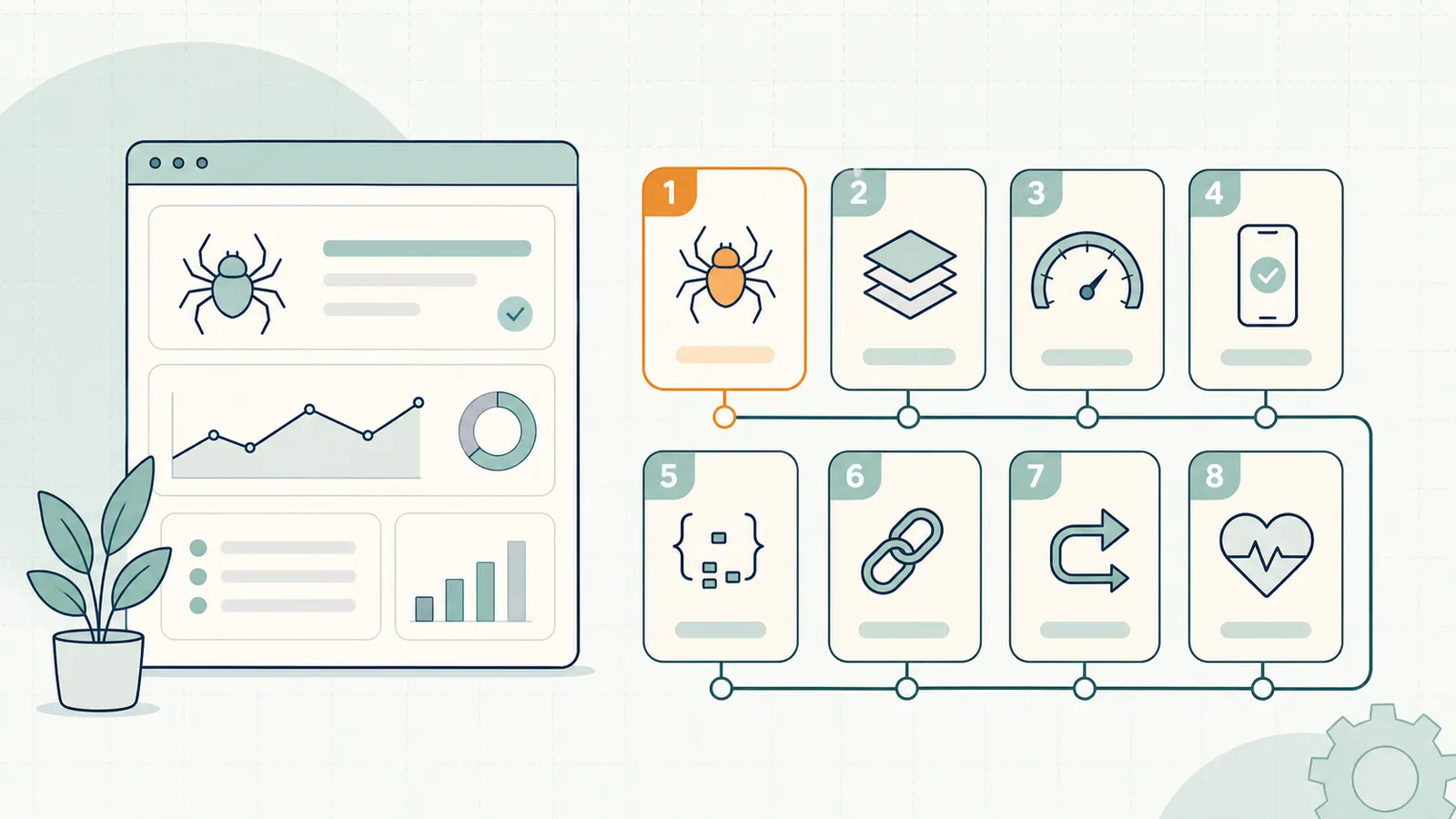
Technical SEO for WordPress sites breaks down into a finite set of problems. The same eight categories account for nearly every technical issue that causes ranking suppression or crawl/index failures across the millions of WordPress sites in production today.
This guide covers those eight categories, what causes each problem, and exactly how to fix it. The fixes are ordered by impact — work from the top. If you run through the full list, you will have eliminated the vast majority of technical issues that prevent WordPress sites from reaching their ranking potential.
Last updated: June 6, 2026.
TL;DR
- The most commonly missed WordPress technical SEO issue is index bloat — pages indexed that should not be.
- Fix order: crawlability → indexation → speed → mobile → schema → internal links → redirects → Core Web Vitals.
- Rank Math or Yoast SEO handles most of the technical layer if configured correctly. Most sites configure them incorrectly.
- All eight categories can be audited through a combination of Google Search Console (free) and a crawler like Screaming Frog free tier.
- The biggest time-to-impact fix is almost always noindexing junk pages — tag archives, date archives, author archives on single-author sites, and low-quality paginated pages.
Fix 1: Crawlability — make sure Googlebot can reach your content
The first question in any technical audit: can Googlebot get to your pages at all?
WordPress generates a robots.txt automatically at yourdomain.com/robots.txt. The default is usually fine, but common customizations break it. The most frequent mistake: accidentally disallowing /wp-content/ or the entire site during a development phase, then forgetting to update it. If your site is disallowed in robots.txt, it will not rank for anything.
Check: Open your robots.txt. Confirm it does not block Googlebot from /wp-content/uploads/, /wp-content/themes/, or /wp-content/plugins/ — these are needed for rendering. Confirm the Disallow: field is not set to /.
Check: In Search Console → Settings → Crawl stats → view crawl requests. A dramatically lower request count than expected suggests a crawl block.
Check: Use Search Console's URL Inspection tool on your most important pages. "URL is on Google" with a recent crawl date confirms accessibility. "Blocked by robots.txt" is the red flag.
Fix: If your SEO plugin is managing robots.txt (Rank Math and Yoast both do), use the plugin's robots.txt editor rather than a raw file. Direct file edits are overridden on some hosts. Confirm that no caching layer is serving a cached robots.txt from a blocked state.
Fix 2: Indexation — get the right pages indexed, not all of them
Index bloat is the most underdiagnosed technical issue on WordPress sites. WordPress is generous: by default, it creates indexable URLs for every tag, every category, every author archive, every date archive, and every paginated page. A site with 100 posts can easily have 400+ indexed URLs — most of them thin, duplicate, or low-value.
Google has a crawl budget. Wasting it on tag archives and date pages means it spends less time crawling your actual content. Beyond crawl budget, thin pages dilute your site's quality signal.
Check: In Search Console → Index → Pages → Indexed. Export the full list and count non-post URLs. If indexed pages significantly outnumber your actual posts and important category/product pages, you have index bloat.
Common junk pages to noindex:
- Author archives (if you have one author)
- Date archives (
/2024/,/2024/06/, etc.) - Tag archives with fewer than three posts
- Pagination pages beyond page 2 (
/page/3/,/page/4/, etc.) - Search results pages (
?s=) wp-sitemap.xmlindex page (the meta sitemap listing)- Low-quality or draft pages accidentally published
Fix with Rank Math: Go to Rank Math → Titles & Meta → each taxonomy type. Set "No Index" for author, date, and tag archives you want to exclude. Enable "Robots Noindex" for these archive types.
Fix with Yoast: Yoast → Search Appearance → Taxonomies → Tags. Toggle "Show tags in search results" to off for tag types you want to noindex. Repeat for author archives and dates.
After applying noindex, submit a change of address or recrawl request is not necessary — Google will process the noindex signals on its next crawl cycle, typically within 1 to 4 weeks.
Fix 3: Speed — WordPress site speed for SEO
Page speed affects both rankings (as a direct signal) and user behavior (bounce rate, conversion). WordPress sites are often slow not because WordPress is slow, but because of the combination of heavy themes, unoptimized images, and overlapping plugins.
The target: Largest Contentful Paint (LCP) under 2.5 seconds on mobile for your key pages.
Diagnose: Google PageSpeed Insights (pagespeed.web.dev) gives you a mobile score and identifies the specific resources causing slowdown. The "Opportunities" section shows the highest-impact fixes. Run it on your homepage and your three highest-traffic posts.
The common causes of slow WordPress sites:
- Unoptimized images. Images served as PNG or full-resolution JPEG instead of WebP, sized much larger than the rendered size. Fix: Shortpixel, Imagify, or WebP conversion via your CDN.
- No caching. Every page request goes to PHP processing. Fix: WP Rocket, W3 Total Cache, or LiteSpeed Cache (if your host uses LiteSpeed).
- Heavy page builder. Elementor, Divi, and WPBakery add significant CSS and JS payloads. Fix: use the block editor (Gutenberg) for new content. For existing builder content, use the builder's performance settings to reduce output.
- Render-blocking scripts. JS files that load synchronously before the page renders. Fix: load them asynchronously or defer in your caching plugin's settings.
- No CDN. Files served from a single origin server with high TTFB for distant users. Fix: Cloudflare free tier, BunnyCDN, or your host's built-in CDN.

Fix 4: Mobile — WordPress mobile SEO
Google is mobile-first indexed. The mobile version of your site is what Google uses for ranking. If your mobile experience differs significantly from your desktop — missing content, hidden sections, broken navigation — your rankings reflect the mobile version's quality.
Check: In Search Console → Experience → Mobile Usability. Any errors here are direct ranking signals.
Check: Use Google's Mobile-Friendly Test (search.google.com/test/mobile-friendly) on your key pages.
Common WordPress mobile issues:
- Text too small to read without zooming (viewport meta tag missing or misconfigured)
- Clickable elements too close together (especially in navigation menus)
- Content wider than the screen (overflow caused by fixed-width elements)
- Interstitials and popup overlays that cover the main content on mobile
Fix: Most modern WordPress themes include responsive design. If you are on a theme older than 2019, consider updating. For popup overlays: use Google's own guidance — popups that are easily dismissible and do not block most of the content on mobile are acceptable. Full-screen interstitials that require interaction before showing content are a ranking signal.
Fix 5: Schema — structured data for WordPress
Schema markup tells Google what your content is — a recipe, a how-to, an article, a product, a local business. Pages with accurate schema get enhanced display in search results (star ratings, FAQ dropdowns, how-to steps) and are more likely to be cited in AI Overviews.
What schema WordPress sites should have:
- Article schema on all blog posts (handled automatically by Rank Math and Yoast with correct setup)
- FAQPage on posts with FAQ sections
- HowTo on step-by-step guides
- WebSite with a SearchAction (enables the sitelinks search box in Google)
- Organization or LocalBusiness if applicable
- BreadcrumbList for navigation hierarchy
Check: Google's Rich Results Test (search.google.com/test/rich-results) on your key pages shows which schema is detected, which is valid, and which has errors.
Fix with Rank Math: Rank Math's Schema tab on each post lets you select and configure schema types. For FAQ schema, add it directly in the post editor. Rank Math also auto-generates Article schema from the post's metadata.
Fix with Yoast: Similar — Yoast generates Article schema automatically and has a schema output configuration panel in the plugin settings.
Common errors to fix:
author.namemissing or set to a user ID rather than a namedateModifiednot updating when content is refreshedimageproperty missing (required for AMP and for Article enhanced results)- FAQPage schema applied to pages without genuine FAQ sections (Google will ignore it)
Fix 6: Internal links — fixing thin internal link graphs
Internal links pass topical authority between pages and help Googlebot discover all your content efficiently. WordPress sites accumulate internal link debt over time — new content is published without linking back to relevant older posts, and the oldest cornerstone posts stop receiving new internal links as the site grows.
Check with Screaming Frog: Crawl the site. In the Internal tab, sort by Unique Inlinks ascending. Pages with zero or one inlinks are link-isolated — they will rank lower than their content quality warrants.
The internal linking rules for WordPress sites:
- Every new post should contain at least three contextual links to existing relevant posts.
- Every existing post with significant traffic (your top 20 by sessions) should receive at least two new internal links per quarter from relevant new content.
- Cornerstone pages (your key feature pages, primary how-to guides) should appear in your navigation or in a sidebar links widget, not just in the body of posts.
- Use anchor text that is descriptive and contains the target keyword or a close variant. Not "click here" or "read more."
Fix: The fastest approach is an internal link audit. Export all indexed pages from Search Console. Sort by impressions descending (your most visible pages). For the top 20 pages, count existing inlinks with Screaming Frog. Add 2 to 3 new internal links from relevant content for any page with fewer than 5 inlinks.
Fix 7: Redirects — cleaning up the redirect chain mess
WordPress sites accumulate redirect chains over time. A permalink structure change creates one level. A plugin migration creates another. A domain change creates a third. By the time a link is clicked, it may go through three or four hops before reaching the final URL.
Each redirect hop adds latency. Chains of three or more hops lose link equity at each step. Crawlers may not follow chains longer than five hops at all.
Check: In Screaming Frog, go to Response Codes → Redirection (3xx). For each redirect, check the "Redirect To" column. Any URL that redirects to another URL that also redirects is a chain.
Common causes on WordPress:
- Changing permalinks in Settings → Permalinks without setting up redirects
- Installing/uninstalling URL management plugins that leave redirect tables with conflicts
- HTTP → HTTPS migration with partial implementation (some URLs still redirect HTTP → HTTP → HTTPS)
- Category or tag slug changes without redirects
Fix: Rank Math's Redirections module or the Redirection plugin both handle individual and bulk redirect management. Consolidate all chains to a single 301. The rule: if page A redirects to page B which redirects to page C, update A to redirect directly to C.
HTTPS check: Confirm every HTTP URL (including the homepage) redirects to HTTPS in a single hop. Double-check that your SSL certificate is valid and not expiring within 30 days.
Fix 8: Core Web Vitals — the performance metrics that affect ranking
Core Web Vitals are Google's specific performance metrics. The three that matter for rankings are LCP (Largest Contentful Paint), INP (Interaction to Next Paint), and CLS (Cumulative Layout Shift).
Check: Search Console → Experience → Core Web Vitals. This shows your real-user data (field data), which is what Google uses for ranking — not the lab data from PageSpeed Insights.
The three metrics and their WordPress-specific fixes:
LCP (target: under 2.5 seconds). The LCP element is almost always your hero image or the above-the-fold featured image on posts. Optimize: convert to WebP, add fetchpriority="high" to the LCP image element, preload the LCP image in your theme's <head>.
INP (target: under 200ms). Interaction to Next Paint measures how fast the page responds after a user interaction. The usual culprits on WordPress: heavy JavaScript that runs on user interactions, third-party scripts (live chat, analytics, marketing automation) that block the main thread. Fix: defer third-party scripts until user interaction, remove unused plugins that add JS.
CLS (target: under 0.1). Cumulative Layout Shift is caused by elements that move after initial render. Common WordPress causes: images without explicit width and height attributes, web fonts that swap in and shift text, ad slots that expand, cookie banners that push content. Fix: always set width and height on <img> tags, use font-display: optional for web fonts to prevent layout-shifting font swaps.

Running a WordPress technical SEO audit in under an hour
With the eight categories above, you can do a meaningful technical audit in 45 to 60 minutes.
Minutes 0–10. Open Search Console. Check Coverage → Indexed vs. Not Indexed. Note the numbers. Look at the Excluded list — count any categories that account for more than 10% of excluded URLs.
Minutes 10–20. Check Mobile Usability and Core Web Vitals in Experience. Any errors here are high priority.
Minutes 20–30. Open PageSpeed Insights on your homepage and top three posts. Note the LCP score and the top Opportunity items.
Minutes 30–40. Run URL Inspection on your five most important pages. Confirm they are indexed, confirm the last crawl date is within the past 30 days, confirm no robots.txt or noindex errors.
Minutes 40–50. Check your robots.txt and sitemap. Confirm the sitemap is submitted in Search Console. Confirm robots.txt does not block wp-content.
Minutes 50–60. Review your SEO plugin settings for archive pages. Confirm author, date, and empty tag archives are set to noindex.
Automating the ongoing technical audit
The eight-category audit above is not a one-time exercise. WordPress sites change: new plugins install, themes update, content gets added. A technical issue that is not present today can appear next month when a plugin conflicts with another.
RankHive runs a continuous technical audit as part of its weekly SEO cycle. When it detects a new issue — a page moving from indexed to excluded, a CWV regression, a missing schema property — it drafts a fix proposal and queues it for review. You see the issue and the proposed solution; you approve; the fix goes to WordPress. No manual audit required every month. The SEO Autopilot feature page breaks down exactly which of these eight categories it monitors and drafts fixes for.
The order matters more than the list
It is tempting to treat these eight fixes as a menu and start with whichever feels easiest. Resist that. The order is the whole point, because the categories build on one another and fixing them out of sequence wastes work.
Consider what happens if you start at the wrong end. You spend a weekend adding rich FAQ and HowTo schema (Fix 5) to a set of pages — then discover in Fix 2 that half of them are noindexed archive URLs that should never have been schema targets in the first place. Or you obsess over shaving 200ms off INP (Fix 8) on pages that Fix 1 reveals Googlebot cannot even crawl. Speed and schema are amplifiers: they multiply the value of a page that is already crawlable, indexable, and mobile-sound. Applied to a page failing those basics, they multiply zero.
So the sequence is deliberate. Crawlability and indexation come first because a page that cannot be reached or will not be indexed earns nothing regardless of how fast or well-marked-up it is. Speed and mobile come next because they affect every page and feed Core Web Vitals. Schema, internal links, and redirects come after because they refine and distribute the authority of pages that are already fundamentally healthy. Core Web Vitals sits last not because it is unimportant, but because it is the finishing pass — the field-data metric that reflects whether the speed and layout work in the earlier fixes actually landed for real users.
Work top to bottom. Each fix makes the next one count for more.
Frequently asked questions
Do I need an SEO plugin for WordPress technical SEO?
Yes. Rank Math or Yoast are the two options that cover the most ground with the lowest effort. Rank Math's free tier is more generous; Yoast is more established and has a larger support ecosystem. Either configured correctly handles the majority of the technical layer.
How often should I run a WordPress technical SEO audit?
Monthly at minimum for sites that publish frequently. Quarterly for low-activity sites. Immediately after any major WordPress update, theme change, or plugin installation.
Can technical SEO issues be fixed without developer help?
Most of them, yes. The eight categories above are all addressable through plugin configuration and Search Console — no code editing required. The exception: complex redirect cleanup on large sites, and custom schema implementation beyond what plugins support.
How do I find pages that are slow specifically on mobile?
Search Console's Core Web Vitals report separates mobile and desktop data. Use the mobile tab to identify URLs with poor LCP on mobile specifically. These are your priority pages for the speed fixes in category 3.
Should I use a sitemap plugin separate from my SEO plugin?
No. Rank Math and Yoast both generate XML sitemaps. Using a separate sitemap plugin creates duplicates. Disable any standalone sitemap plugin and use your SEO plugin's sitemap.
Is technical SEO a one-time fix or ongoing work?
Both. The initial pass through these eight categories is a one-time cleanup that removes the accumulated debt on an existing site. But technical health drifts: a plugin update reintroduces a CWV regression, a new content type starts generating thin archive URLs, an SSL renewal misfires. The fix work is front-loaded; the monitoring is permanent. That monitoring is the part most sites drop after the first cleanup, which is why a recurring check — manual quarterly, or automated weekly — matters as much as the original fixes.
Related reading
- How to Improve WordPress SEO: The 2026 Playbook
- Best WordPress SEO Plugin: Rank Math vs Yoast vs SEOPress
- WordPress SEO Audit: Find and Fix Every Issue
- How to Automate SEO: The Complete Playbook
- AI Content Optimization: A Practical Guide for 2026
- WordPress SEO Checklist 2026 (free, 47 items)
- SEO Autopilot for WordPress
RankHive runs the technical audit continuously and queues fixes for your approval. Try RankHive — your next monthly manual audit could be your last.