WooCommerce SEO software for the pages
that bring shoppers in
RankHive audits the posts and pages on your WooCommerce store every week (buying guides, blog posts, landing pages), drafts the fixes and new articles, and waits for your approval before anything changes. It does not edit product or category pages. This page shows where it fits and how to handle the store work it leaves to you.
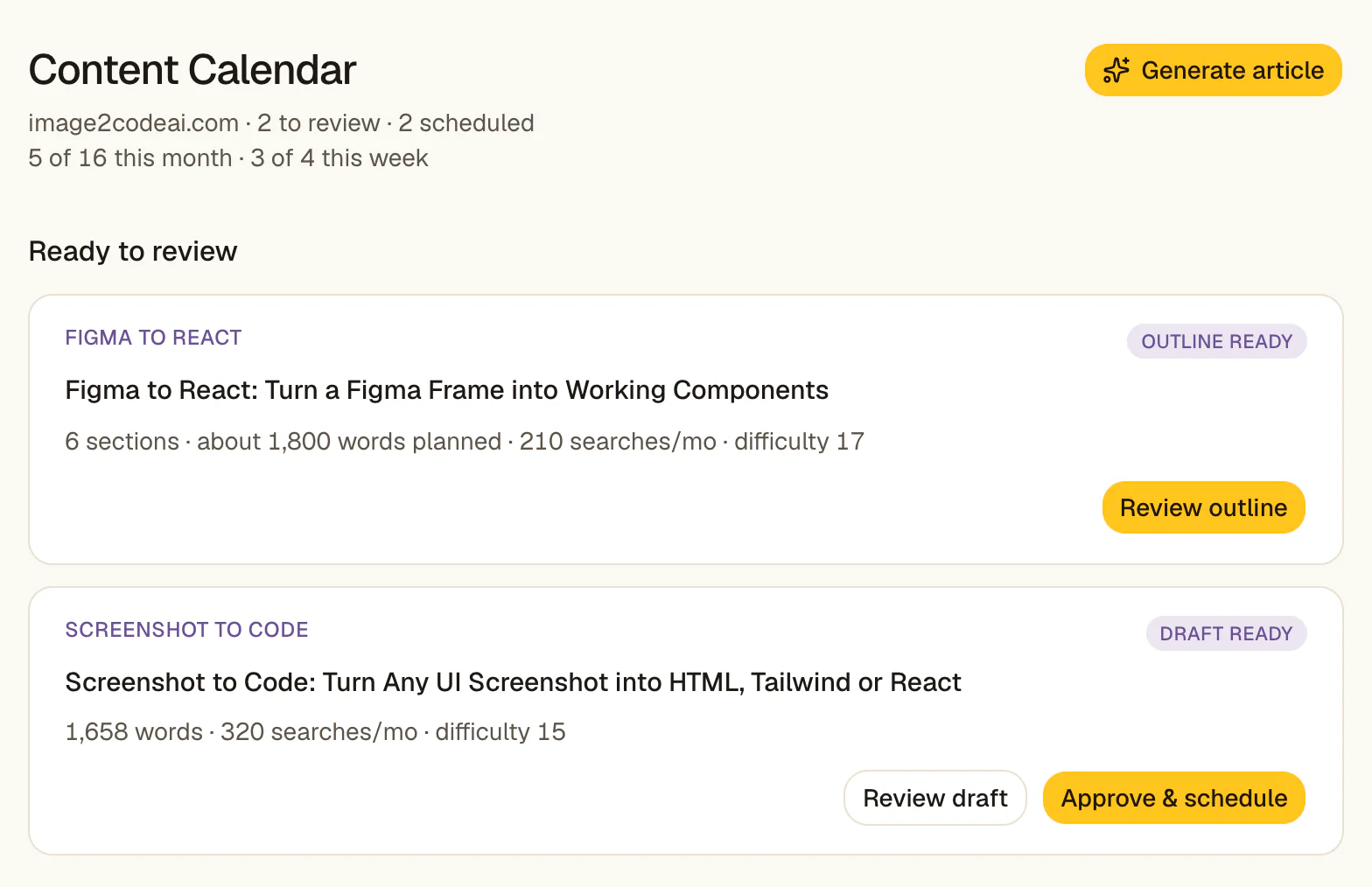
What RankHive does on a WooCommerce store today
A WooCommerce store is a WordPress site, and RankHive connects to it the same way: install the free RankHive plugin, connect your Search Console property, and approve the connection.
From there it works on your WordPress posts and pages: buying guides, blog posts, size guides, landing pages, the shipping and returns page. Every week it reads your Search Console data, finds the posts and pages stuck on page two, titles nobody clicks and pages losing clicks, and drafts the fix. It also drafts up to 16 articles a month for keywords you pick.
It does not edit WooCommerce products or product categories. They are separate content types in WordPress, and the RankHive plugin only writes to posts and pages. A problem on a product or category URL never reaches your queue, because RankHive only shows changes it can make. If most of your search traffic lands on product pages, we would rather you know that before you pay.
The rest of this page covers how the two halves fit: what RankHive handles on a store, what stays with you and your SEO plugin, and how to make the product and category decisions it leaves to you.
Who handles what on a WooCommerce store
RankHive writes to posts and pages. Anything attached to a product or a product category stays in WooCommerce and your SEO plugin.
| Job | RankHive | You, in WooCommerce or your SEO plugin |
|---|---|---|
| Search titles and meta descriptions | Drafts them for posts and pages from Search Console data, and writes them into Yoast SEO, Rank Math or SEOPress after you approve | Products, product categories, tags and the shop page |
| Category descriptions | No | Write them under Products, then Categories |
| Product descriptions | No | Yours |
| Product structured data | No. It does not read product data | WooCommerce and your SEO plugin output it; check the Merchant listings report |
| Structured data on guides and pages | Drafts JSON-LD, served by the RankHive plugin | Nothing to do |
| Internal links | Adds links inside posts and pages, found by crawling your sitemap | Menus, category and product templates |
| Noindex on filtered, sorted and attribute URLs | No. It cannot set noindex | Your SEO plugin settings |
| robots.txt | Can draft a change, which you review line by line | Decide which URL patterns to block |
| Redirects | Proposes them when two posts or pages compete for the same searches | Discontinued products and renamed categories |
| Out-of-stock and discontinued products | No | Stock status in WooCommerce, then a redirect or a 404 |
| New articles | Up to 16 a month for keywords you pick, scheduled in WordPress | Choose the keywords and add product links |
RankHive writes titles, descriptions and canonicals into your SEO plugin’s fields. It works alongside Yoast SEO, Rank Math or SEOPress, not instead of them.
Category pages and product pages answer different searches
Most store searches split along one line. Someone searching for trail running shoes for wide feet wants a range to compare, so Google tends to rank category pages and lists. Someone searching for a model name and size wants one item and a buy button, so it ranks product pages. A buying guide comes before both: how to choose trail running shoes is a request for an explanation, not a product grid.
Before you write anything, look at what already ranks. If the first page is all category pages from other stores, a product page will not get there and a blog post probably will not either; your category page is the candidate. If it is all guides and reviews, a category page will struggle and a guide is the page to build.
Search Console shows which of your pages Google has already matched to a search. In the Performance report, click a query and switch to the Pages tab. If a product page appears for a broad category search, the category page is often thin or poorly linked, and Google picked the closest thing it could find.
RankHive’s Keywords page lists each keyword’s search intent next to its volume, difficulty and the page of yours that ranks for it, if any. Informational keywords usually suit a guide, which RankHive can draft. Commercial and transactional keywords usually belong to a category or product page, which means the work is yours, in WooCommerce.
Buying guides that feed your category pages
A buying guide can earn links and impressions a category page can’t, and it passes some of that value on through internal links. The guide answers the question; the category is where the shopper goes next.
In RankHive, pick an informational keyword on the Keywords page, review the outline, and approve the draft. It goes to WordPress as a draft and publishes on the date you schedule. Before that date, open it in WordPress and link to the category and the two or three products the guide recommends, using the category name or a close variant as the link text.
Watch for overlap. If one of your pages already ranks in the top 50 for the keyword, or has had at least 50 Search Console impressions for it in the last 28 days, the Keywords page warns you that the page already ranks and that a new article may compete with it. That page can be a category. When it is, a guide on the same keyword is more likely to split the ranking than help it. Improve the category instead, and aim the guide at a narrower question that links to it.
Once the guide is live, the weekly audit treats it like any other post. It counts the internal links pointing to it, looks for places where another post names it without linking, and drafts those links for your approval. The crawl behind this reads your sitemap up to 150 URLs, so on a large store not every URL gets crawled each week.
Finding the category pages close to page one
The category pages that move fastest are usually the ones already sitting just off page one. Search Console shows you which they are.
In the Performance report, set the date range to the last three months and turn on Average position. Add a page filter for URLs containing /product-category/, or your own category base if you changed it. Switch to the Pages tab and sort by impressions. A category with steady impressions and an average position between about 8 and 20 is a candidate.
Click one, then open the Queries tab to see the searches it appears for and its position in each. A common pattern is one query at 6 and the rest between 15 and 30: the page is relevant but thin. The usual fixes are a category description that covers what the range includes, who it suits and how to choose within it; a title that matches the main query; and links from your guides. All of that is your work, in WooCommerce and your SEO plugin.
Read the numbers with care. Google calculates average position from the topmost position your page held in each result, averaged across every search it appeared for, so a page at 11 may be 4th for one search and 40th for another. The Queries tab tells you which. Judge a change after a few weeks, not a few days.
RankHive’s Overview gives the store-wide view each week: clicks, impressions, click-through rate and average position for the last seven days against the seven before, across your whole Search Console property, product and category pages included. The fixes it drafts cover posts and pages only.
Filtered, sorted and paginated URLs
Layered navigation is the biggest source of junk URLs on most stores. Every filter and sort option, such as ?filter_color=blue or ?orderby=price, and every combination of them, can create a URL that shows a reshuffled part of one category. Left alone, Google can spend its crawling on thousands of them.
The rule from our WooCommerce guide holds here: keep paginated category pages indexable, each with a self-referencing canonical and plain links between the pages, and noindex the filtered and sorted variants. You set noindex in your SEO plugin or theme. RankHive cannot set it.
One trap catches a lot of stores. A noindex tag only works if Google can crawl the page and see it. If you also block the same URLs in robots.txt, Google never fetches them, never sees the noindex, and can keep a blocked URL in the index when other pages link to it. Use one or the other for each URL pattern.
Google’s faceted navigation guidance goes further for large stores. If you don’t need filtered URLs in search at all, it recommends blocking them in robots.txt so they stop using crawl capacity, and returning a 404 for filter combinations with no products. It describes canonical tags and nofollow on filter links as less effective over time. The safe order is noindex first, let the URLs drop out of the index, then add the robots.txt block if crawling is still the problem.
This matters with RankHive because robots.txt is something it can change. If it drafts a robots.txt change on your store, compare the current and proposed files line by line before you approve, and check that no new rule blocks a filter pattern you rely on noindex for. If a change turns out wrong, revert it from the Change Log; the revert stops if the file was edited again since.
Variable products and variation URLs
A variable product is one product with several variations, such as sizes, colors or materials. In WooCommerce a variation’s permalink is the parent product’s URL with the variation’s attributes added as query parameters, for example ?attribute_pa_color=black. Ads, feeds and comparison sites often link to those.
Those parameter URLs show the same product with one option selected, so they should point their canonical at the parent. Google’s ecommerce URL guidance says that when a variant is selected with an optional query parameter, the canonical is the URL without the parameter. Most SEO plugins already do this. Check one variation link with the canonical checker to be sure.
A separate URL per variant is only worth it when people search for the variant itself and the page differs in a way that matters to them: a different image, price or availability. Google supports that setup through ProductGroup markup, with hasVariant listing the variants, variesBy naming what changes, and a productGroupID, each variant marked up as its own Product. That is SEO plugin and theme work, not something RankHive does.
Variants are not the same as duplicate products. If the same item is listed twice because a supplier split it, merging the two is a catalog decision, made in WooCommerce.
Product structured data and merchant listings
Google uses product markup for two different features, and they need different things. Product snippets add price, availability or review stars to an ordinary result. They accept an Offer or an AggregateOffer and need at least one of a review, a rating or an offer. Merchant listings are the shopping-style results, for pages where a shopper can buy. They need an image and an Offer with a price and a priceCurrency, do not take an AggregateOffer, and can carry shipping and returns details.
Variable products are where stores trip. Google says not to use an AggregateOffer to describe a set of variants, and merchant listings don’t take one, so a variable product marked up as a price range misses merchant listings. If merchant listings matter to you, check how your SEO plugin marks up variable products.
Once Google finds product markup, Search Console adds a Shopping section: Product snippets and Merchant listings reports with errors and warnings by page, plus a Merchant opportunities report for sites Google identifies as online merchants. Those reports are the most reliable list of markup fixes. Google also notes that markup added by JavaScript can make Shopping crawls less frequent and less reliable, so markup in the HTML your server sends is the safer setup.
RankHive does not read WooCommerce product data and does not add Product markup. It drafts structured data for posts and pages, such as a buying guide. To check a product page’s markup, run it through the free WooCommerce SEO checker. To write markup by hand, use the product schema generator.
Out-of-stock and discontinued products
Out of stock for now: keep the page live and mark the product out of stock. Google’s advice for stores pausing sales is to keep product pages up, show them as out of stock in the structured data, and not use the Removals tool. WooCommerce sets availability from the product’s stock status.
Gone for good, with a direct replacement: redirect the old URL to the new product with a 301. Gone with no replacement: let it return a 404 or 410. Google warns against redirecting many old URLs to an unrelated page such as the home page, which it can treat as a soft 404. A blanket redirect to a category hides the real status and gains nothing.
A category that sits empty for a season is a separate case. Google’s guidance for an empty category is to noindex it or return a 404 while it is empty, rather than leave an empty grid in the index.
RankHive doesn’t track stock or catalog changes, so it won’t tell you a product was discontinued. It proposes redirects in one case: when two of your posts or pages compete for the same searches and merging them makes sense. Those redirects are stored and served by the RankHive plugin, separately from your SEO plugin’s redirect manager, so check both when you are working out why a URL redirects.
What stays your decision
Everything that reaches the store. Each change waits in a queue with the current text, the proposed text and the Search Console evidence behind it. You approve it, edit it, ask for a rewrite with an instruction, or discard it. Nothing changes until you approve.
RankHive does not touch prices, stock or orders. Its plugin writes SEO fields, page content, structured data, image alt text, redirects, robots.txt, post status and new drafts, on posts and pages, and only after you approve.
Approved something and changed your mind? Revert it from the Change Log, with no time limit. A paragraph or link revert stops if that passage was edited again since; a title, description or other field revert puts the old value back.
Use cases
Your buying guides got impressions two years ago and have been sliding since.
The weekly audit flags the posts losing clicks, drafts the sections to update and the internal links to add, and waits for your approval.
You know buying guides would help, but you cannot tell which keywords are winnable.
Keyword ideas with volume, difficulty and intent, a warning when one of your pages already ranks, then up to 16 drafted articles a month for the ones you pick.
Your categories rank, but nothing on the site answers the questions shoppers ask before they buy.
Guides aimed at those questions, linked to the categories by you before they publish, with the weekly audit keeping the links between posts up to date.
Search Console shows most clicks landing on product URLs.
RankHive is not the right tool for you yet: it does not edit product or category pages. A WooCommerce-aware SEO plugin will do more for you today.
When this is not the right tool
If your search traffic lands mostly on product and category pages, RankHive cannot help with those pages yet. A WooCommerce-aware SEO plugin will do more for you today.
If you need someone to decide which categories to compete in, restructure a catalog, clean up thousands of indexed filter URLs or recover from a traffic collapse, that is strategy work and you want a consultant.
If you are on Shopify, BigCommerce or a headless stack, this is not for you: the write path is WordPress-specific.
Common objections
Does this replace Yoast, Rank Math or SEOPress?
No. Keep your plugin. It owns the fields, your product markup and your noindex settings. RankHive writes titles, descriptions and canonicals for your posts and pages into Yoast SEO, Rank Math or SEOPress, based on how those pages perform in Search Console.
Will it change prices or product data?
No. RankHive does not edit products at all yet, and it never touches prices, stock or orders.
What if it drafts a robots.txt change that blocks my filters?
Then don’t approve it. Every robots.txt change waits in the queue with the current and proposed file. If one gets through and causes trouble, revert it from the Change Log.
How many stores does one subscription cover?
One. RankHive is $49.99 a month for a single WordPress site, and a WooCommerce store is one site. There is no multi-store plan today, so several stores means one subscription each.
Approval before anything ships
Every proposed change waits in a queue. Nothing reaches the store until you approve it.
Prices and stock untouched
RankHive does not edit products, prices, stock or orders.
Posts and pages, for now
Product and category pages are not supported yet. We would rather say so up front.
Frequently asked questions
Does RankHive work with WooCommerce?
It connects to a WooCommerce store like any WordPress site and works on your posts and pages: blog posts, buying guides, landing pages. It does not audit or edit product and category pages yet.
Can RankHive write product or category descriptions?
Not yet. It drafts fixes for posts and pages, and new articles for keywords you pick. Product and category descriptions are yours to write in WooCommerce.
Does it fix Product schema?
No. RankHive can add JSON-LD structured data to posts and pages, but it does not read WooCommerce product data or edit product pages. Keep your SEO plugin’s product markup, and use the Merchant listings and Product snippets reports in Search Console to find what needs fixing.
Can it noindex filter, sort or attribute archive URLs?
No. RankHive cannot set noindex on a URL. Use your SEO plugin’s settings for attribute and tag archives and for filtered and sorted URLs. Don’t also block those URLs in robots.txt until they have dropped out of the index, or Google won’t see the noindex.
Do RankHive’s numbers include my product pages?
The Overview does: its clicks, impressions, click-through rate and average position cover your whole Search Console property. The Keywords page also shows when a product or category URL is the page that ranks. The fixes RankHive drafts are for posts and pages only.
Do I need a separate subscription for each store?
Yes. Pricing is $49.99 a month per WordPress site, and there is no multi-store plan at the moment. If you manage stores for clients, get in touch and tell us how many. That is the input that decides whether we build one.
Connect WordPress → see your first SEO fixes
Setup takes under ten minutes. Your first audit starts the moment you subscribe.